 Workaddict
How to import your data from Clockify
Workaddict has a built-in Clockify import. It copies your team's projects, tags and time entries in one step and shows a preview before anything is saved. For most teams it takes a few minutes.
Before you start
- A Workaddict workspace. Create an empty private GitHub repository and a fine-grained token for it, then sign in on the start page. The app sets up the repository on first use. Add your team members as collaborators on the repository, so you can assign their Clockify hours to them.
- The team leader role. Only team leaders see the import in Settings. The repository owner is a team leader.
- A Clockify API key. In Clockify, open Profile settings → API → Generate. To import the whole team, use the key of a Clockify workspace admin. Other keys can only read their own entries.
Import before your team starts tracking in Workaddict. If the workspace already has entries, projects or tags, the import replaces them after you confirm. The old data stays in the repository's git history.
Step by step
-
Open the import
In Workaddict, go to Settings → Data and click Import from Clockify.
-
Enter the key and region
Paste the key into Clockify API key and choose your Clockify region. Keep "Global (default)" unless your Clockify workspace is hosted in a specific region (EU, USA, UK or Australia). The key is used only for this import, is sent only to Clockify and is never saved.
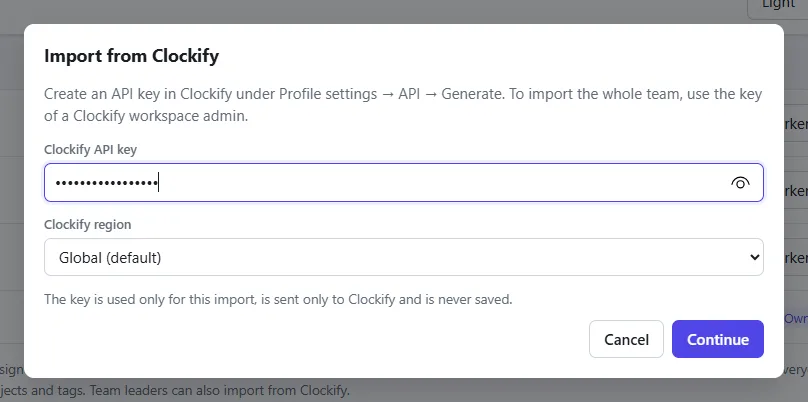
Step 2: the key is masked and never saved. -
Choose the workspace
If your key has access to several Clockify workspaces, choose the one to import. Workaddict then loads its users, projects and tags.
-
Map Clockify users to team members
For each Clockify user, choose under Import as whose entries their time becomes: a team member (the repository's collaborators), a former member, or "Don’t import". Matching GitHub logins are suggested automatically. Former members keep their hours in statistics and exports.
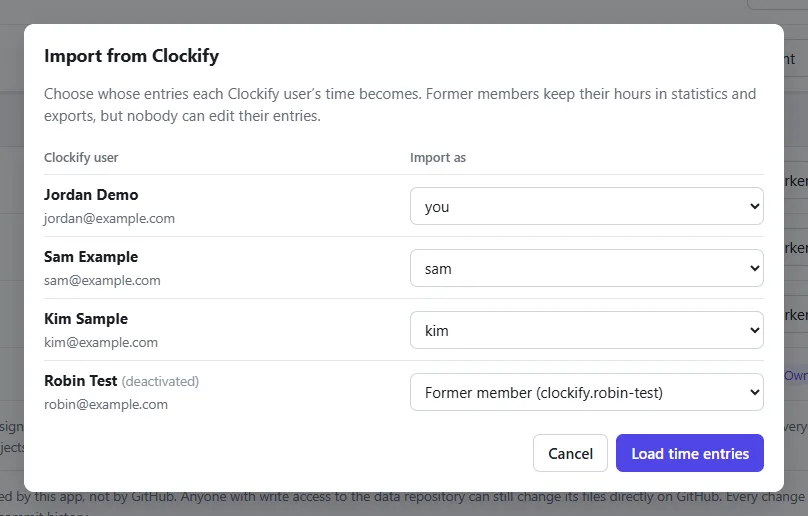
Step 4: a deactivated Clockify user becomes a former member. -
Load the time entries
Click Load time entries. The Clockify Free plan allows 30 requests per hour, so large workspaces can hit the limit. The import then pauses and shows when you can continue. Nothing is lost. Disconnect other Clockify integrations during the import to save requests.
-
Check the preview
The preview shows projects, tags, and entries and hours per member and project. Compare the totals with Clockify's summary report. The preview also lists what can't be imported.
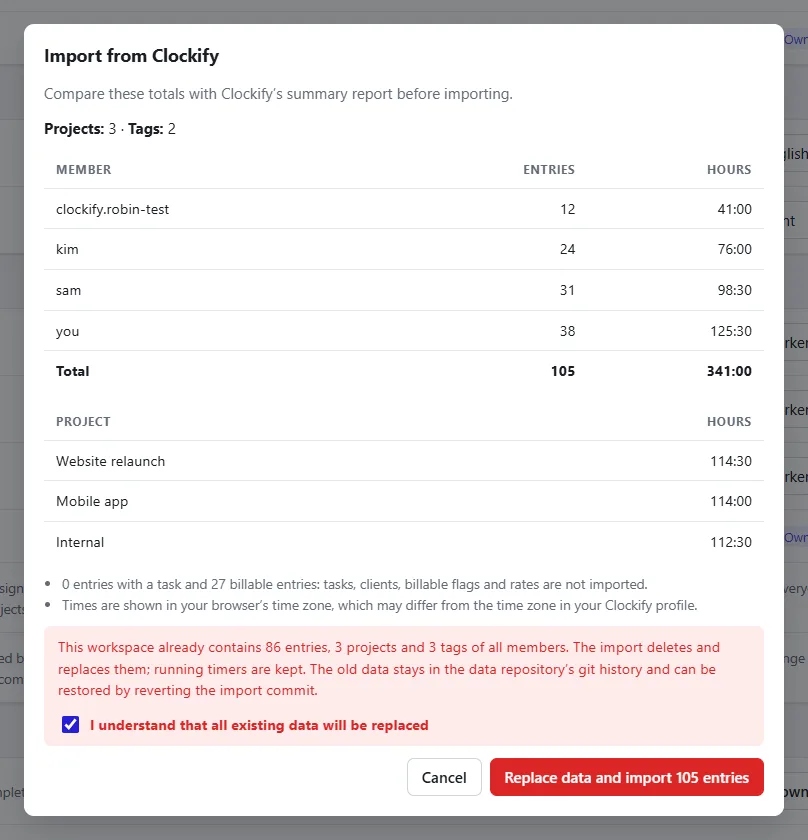
Step 6: the preview, here with the warning that existing data will be replaced. -
Import
Confirm the import. Everything is saved as one commit in your data repository. Afterwards, delete the API key in Clockify (Profile settings → API).
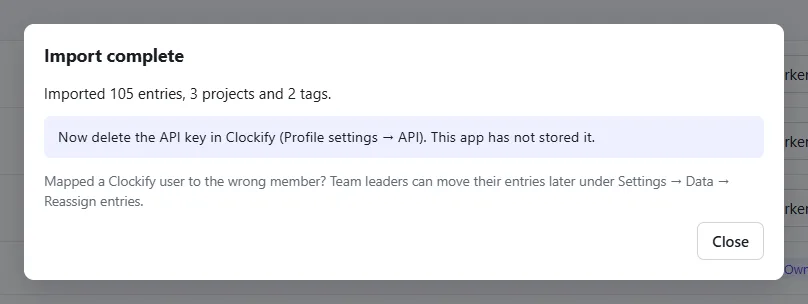
Step 7: done. Delete the API key in Clockify now.
What is imported, and what isn't
- Imported: projects (including archived ones), tags, and finished time entries with description, project and tags, for each mapped user.
- Not imported: running timers, entries without a valid duration, and tasks, clients, billable flags and rates, because Workaddict doesn't have them. The preview shows how many entries are affected.
- Time zones: times are shown in the team time zone (or your browser's, if none is set), which may differ from the time zone in your Clockify profile.
Fixing a wrong mapping later
Assigned a Clockify user to the wrong person? Team leaders can move all of a member's entries to someone else under Settings → Data → Reassign entries. You don't need to import again.
New to Workaddict?
Workaddict is a free, open-source time tracker for small teams. It needs no server, because your entries stay in your own private GitHub repository. See how it compares with Clockify.
Clockify is a trademark of its owner. Workaddict is an independent project and is not affiliated with Clockify.